 haven
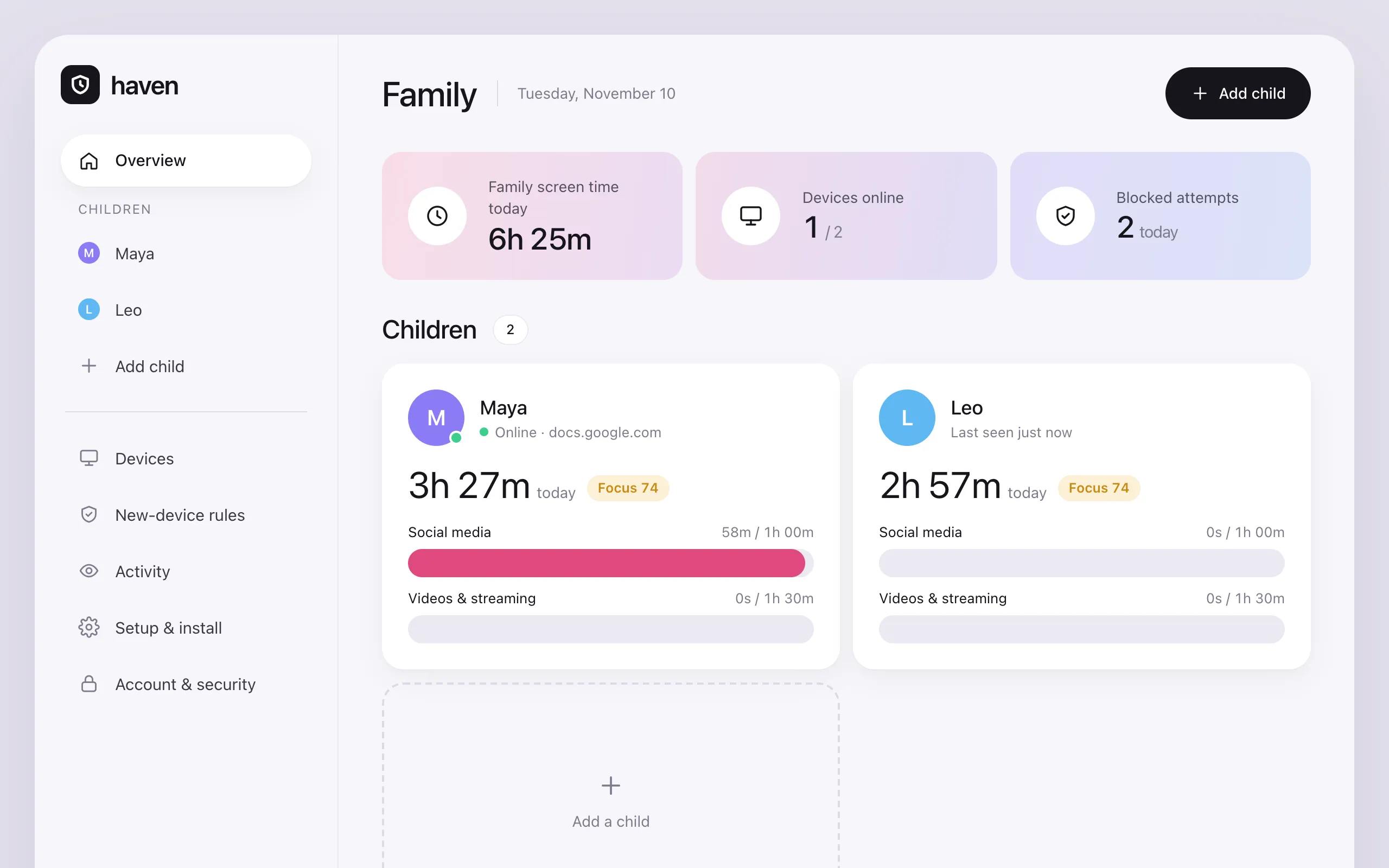
HomeworkQuick switches
Every switch counts
A 10-second chat check is still a switch. Haven counts each one and turns them into concentration and distraction scores.
For families with school-age kids
Haven shows where your kids’ screen time goes, and how often a quick chat pulls them away from homework. Watch first. Set limits when you’re ready.
Free trial · No card needed · Mac, Windows & Linux
Screen-time totals tell you how long. Haven tells you what happened.
A 10-second chat check is still a switch. Haven counts each one and turns them into concentration and distraction scores.
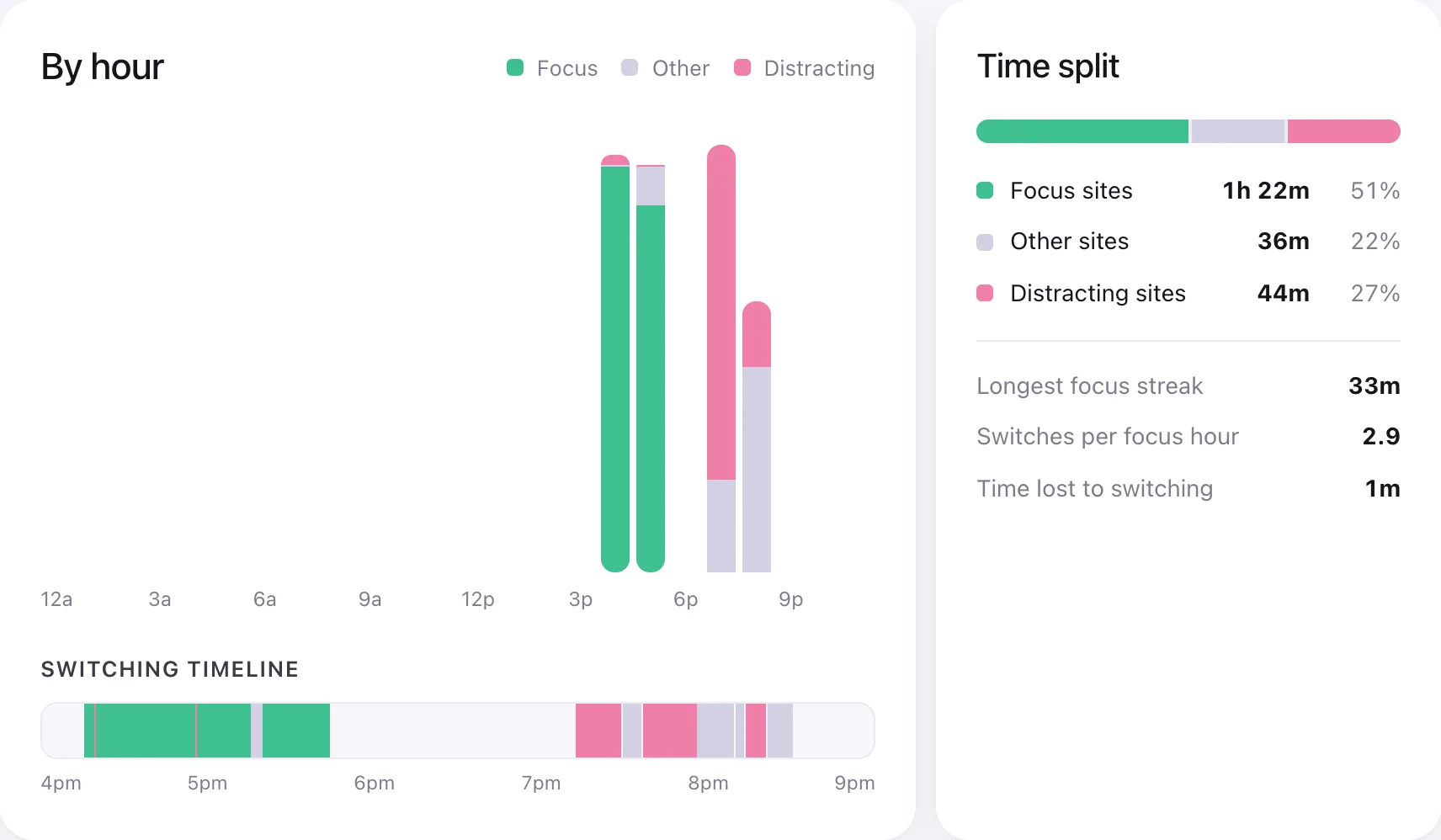
Every website is sorted into education, social media, games, news and more, by day, week, month and year. Move any site and Haven remembers.
See each child across all their computers and accounts. You’ll know if Haven is ever turned off or removed.
Flip between days, weeks, months and years. Hover any bar for the details.
No codes to type and no Terminal. One setup link does the work.
Add your children’s names and choose a parent PIN.
On your child’s computer, download one file and approve it. It covers every account and browser on that computer.
Activity appears within a minute. Start with watching only, and add limits once you know what’s going on.
Focus reports
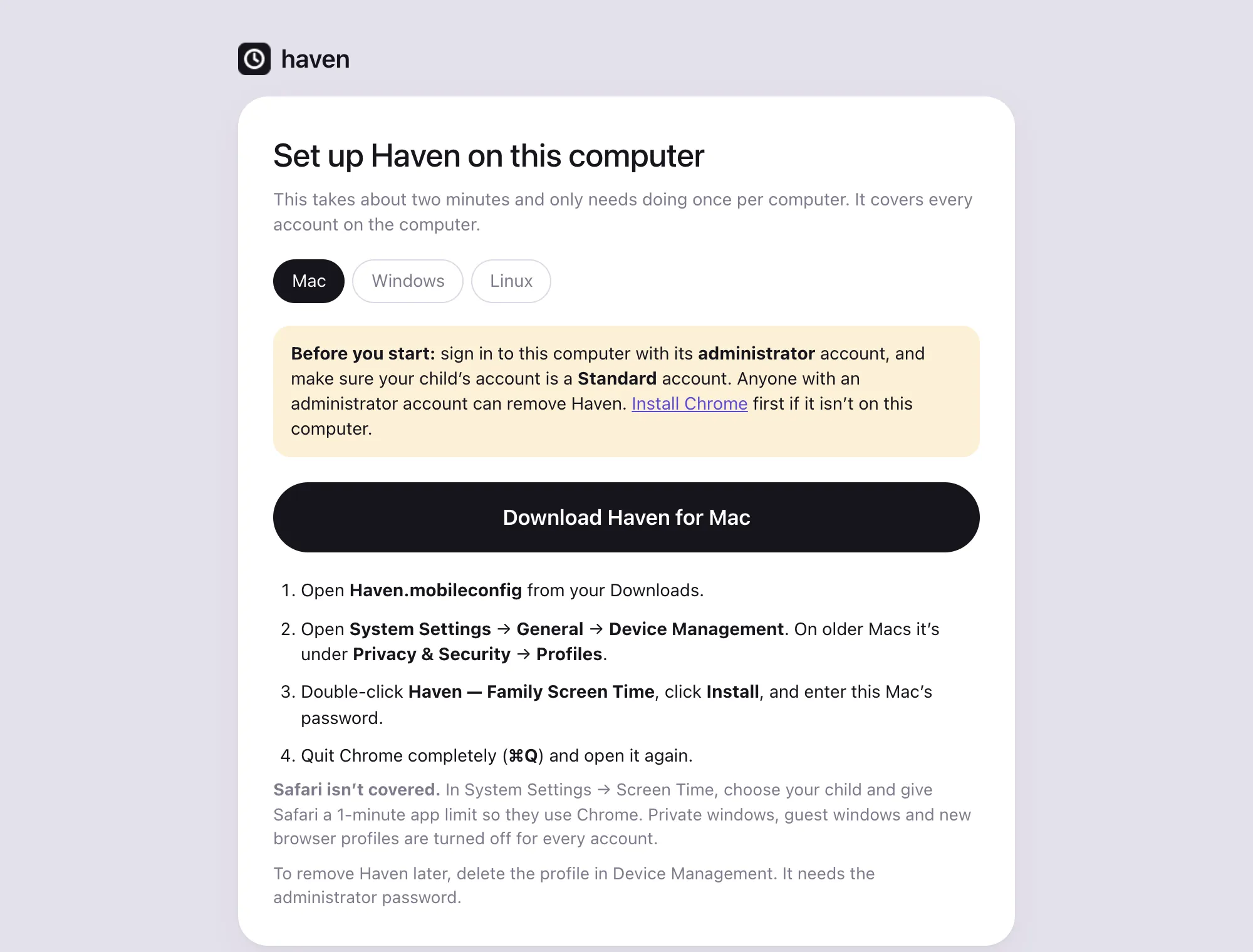
The switching timeline shows homework in green and every detour in pink, minute by minute. Haven ignores time after homework is done, so evenings don’t count against focus.
Every website
Search every site your child used and see its share of their time. Haven guesses the category, and you can change any of them for all your children at once.
Gentle limits
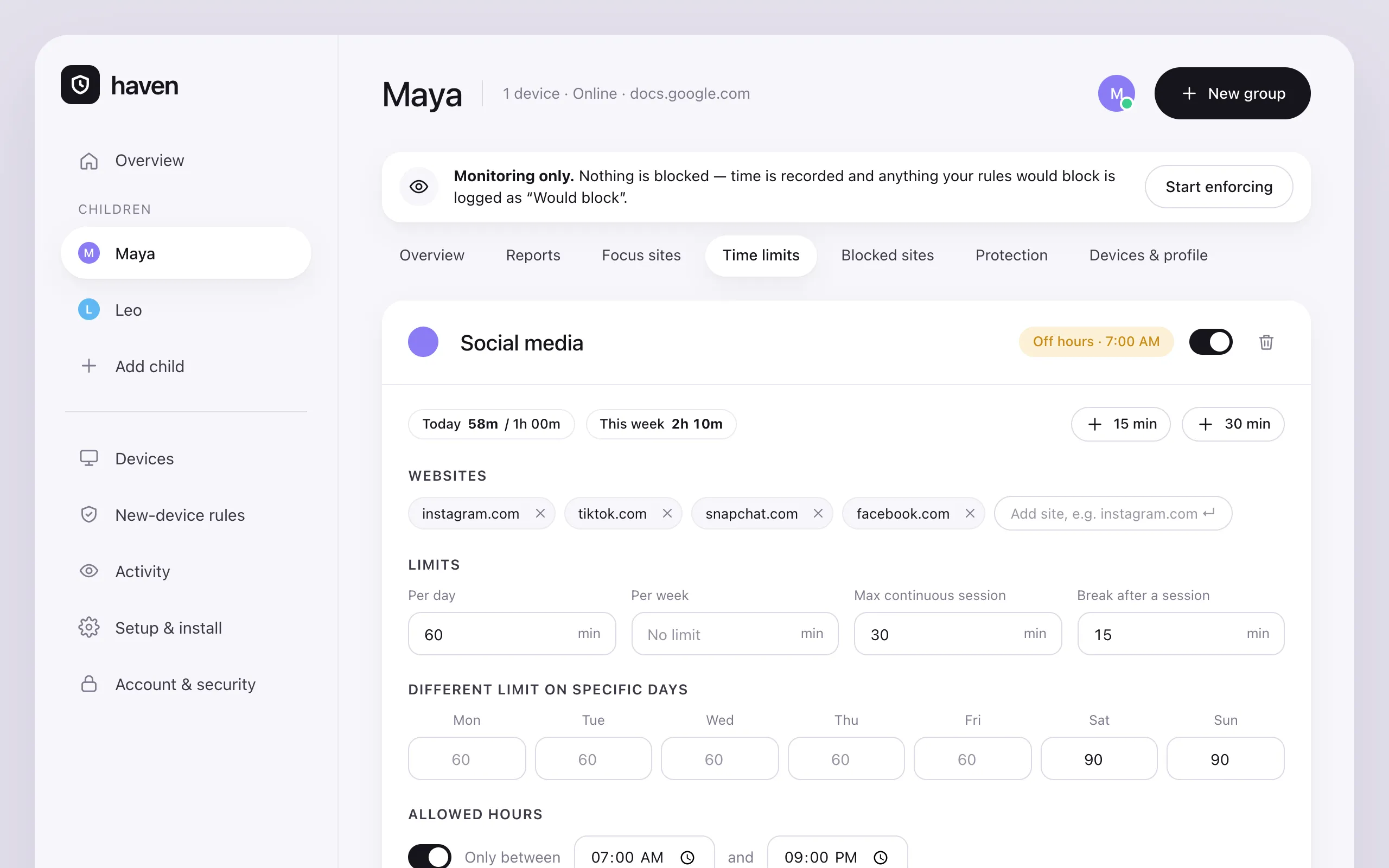
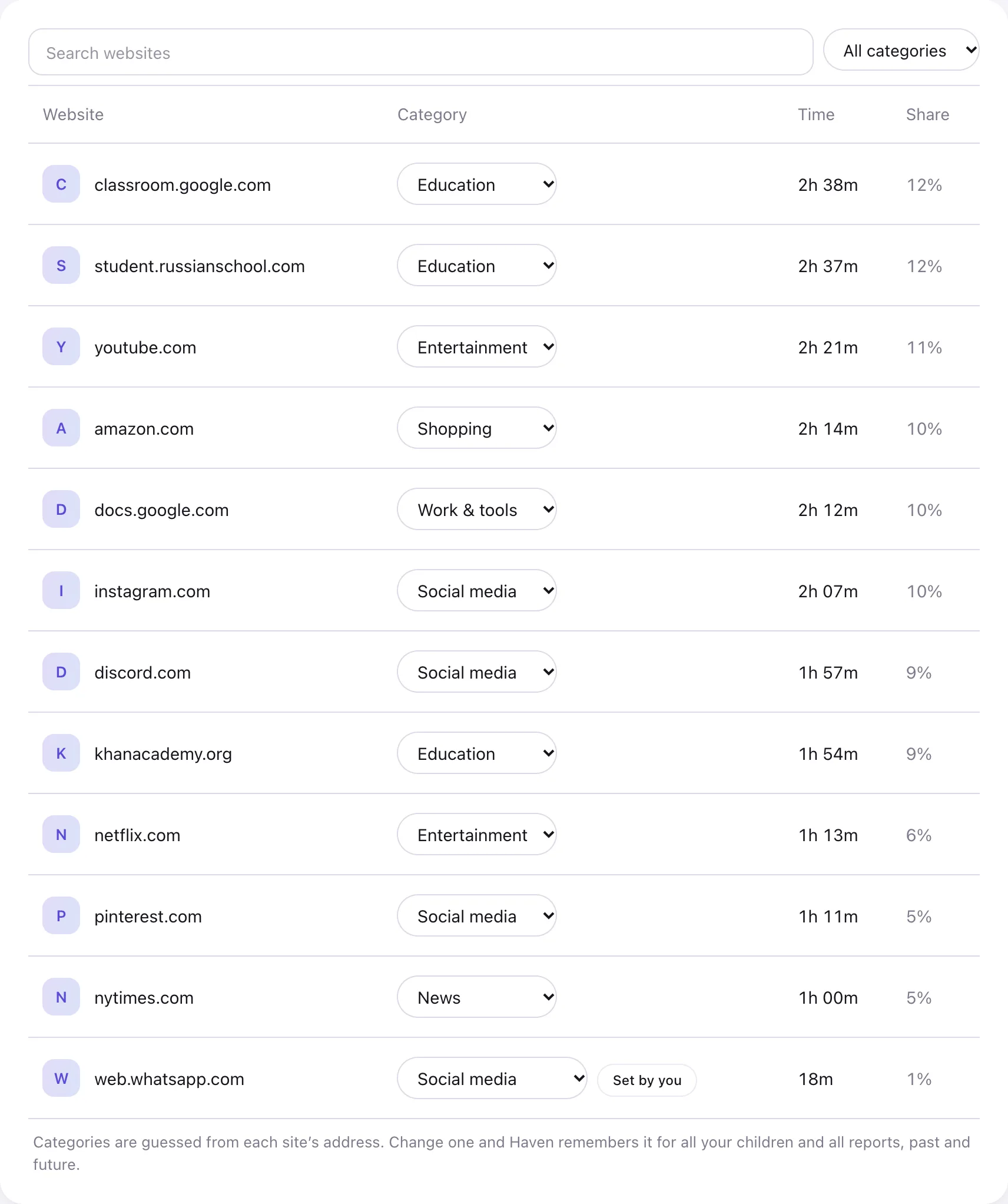
On a child’s standard account, Haven can’t be removed, and private and guest windows are switched off. If it’s ever turned off or removed, you get an alert.
Haven sees site names and time, never messages, page content, keystrokes or screenshots. Read the privacy policy.
Each family’s data is kept apart down to the database, and you can turn on two-step sign-in for your account.
Free trial, then one plan for one child or the whole family. Cancel any time.
Chrome, Edge and Brave on Mac, Windows and Linux. Safari and Firefox aren’t covered yet, so the setup page shows how to limit them with your computer’s own settings. Phones, tablets and Chromebooks aren’t supported.
Not from a standard (non-administrator) account. Haven is installed for the whole computer, and if it’s ever turned off or removed you’ll see an alert on your dashboard.
No. Haven starts in watch-only mode, so you can see what’s happening first. Turn on limits and blocking whenever you choose.
No. Your dashboard works in any browser, on your phone or computer.
Which websites were used and for how long, and anything your rules blocked. Never messages, page content, search terms, keystrokes or screenshots.
Haven shows its icon in the browser and a page when something is blocked. We encourage parents to tell their children it’s there and why.
Set up one computer tonight and see tomorrow’s homework for yourself.
Start free trial